PixKit
 › Tools › Compress Image
Compress Image — free, private, in your browser
Reduce the file size of any photo to a specific size — 100 KB, 200 KB, 1 MB — without uploading it anywhere. PixKit compresses and resizes entirely inside your browser.
Open Compress ImageSee how it works
Why use it
Form fields on job portals, government sites and school applications often cap uploads at 100–500 KB. Email providers reject large attachments, and heavy images slow every web page they sit on.
PixKit’s compressor searches for the highest quality that still fits your size budget, so you get the sharpest image possible at the size you asked for instead of guessing at a quality slider.
| Opens | JPEG, PNG, WebP, HEIC |
|---|---|
| Saves as | JPEG, PNG, WebP |
| Upload to a server | Never — everything runs on your device |
| Account needed | No |
| Cost | Free |
How to use Compress Image
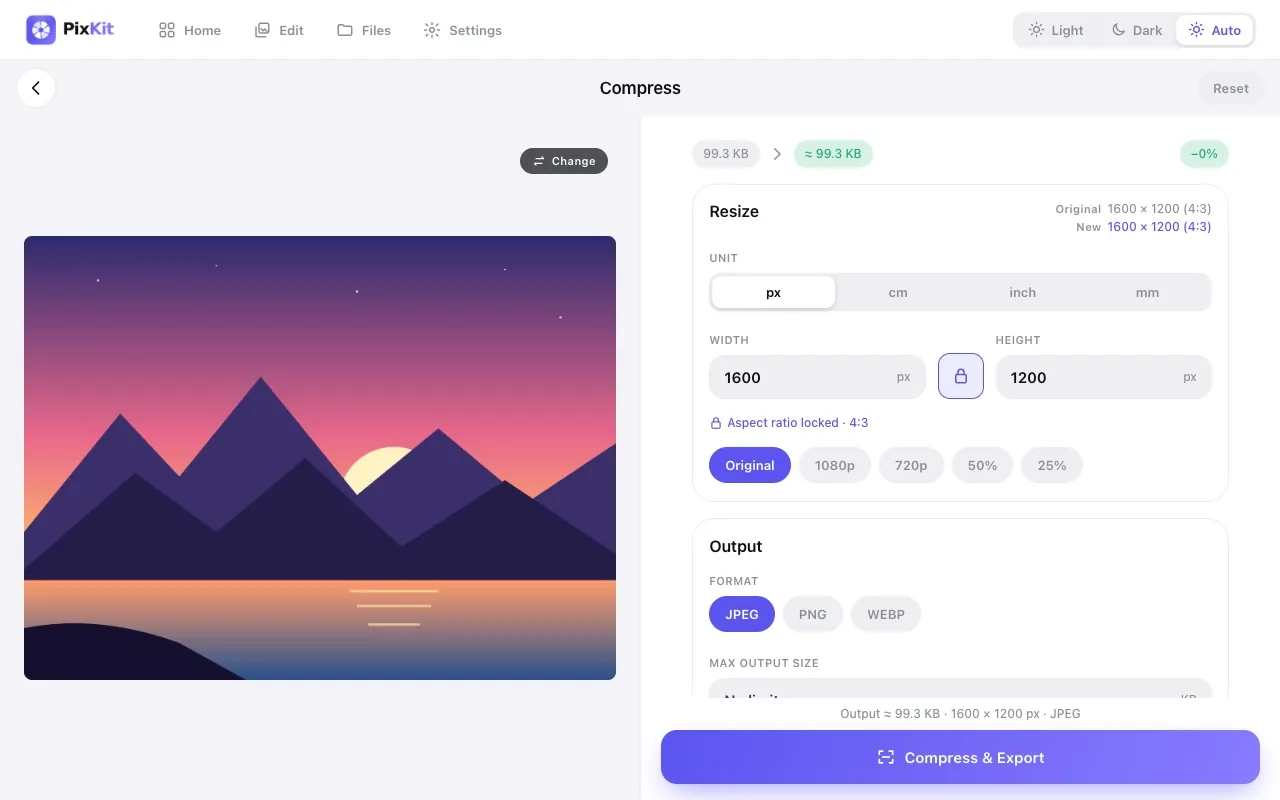
- Open the Compress tool and choose a photo (or drag one onto the page).
- Pick the output format: JPEG for photos, PNG for graphics with transparency, or WebP for the smallest modern files.
- Set a maximum file size, or drag the quality slider and watch the live size estimate.
- Optionally resize by width and height; choose how to handle a different aspect ratio (stretch, fill colour or transparent).
- Export, then download, copy or share the result.
Tips for best results
- Use JPEG for photographs. At quality 70–85 the difference is nearly invisible but the file is often 70–90% smaller.
- Resizing has more impact than quality. A 4000 px photo shown on a 1200 px layout carries three times more pixels than needed.
- PNG is lossless, so quality settings do little — switch to WebP or JPEG if you need a much smaller file.
- For a strict limit (e.g. “under 100 KB”), set the size budget instead of the quality slider.
Your files stay private
PixKit does all of its image and PDF work locally in your browser using the browser’s Canvas API and open-source JavaScript libraries.
Read the Privacy Policy for the full details.
Frequently asked questions
Is my photo uploaded to a server?
No. Compression runs on your device using your browser’s canvas. The file never leaves your computer or phone.
Which formats are supported?
You can open JPEG, PNG, WebP and HEIC photos and export to JPEG, PNG or WebP.
Will compressing reduce quality?
JPEG and WebP are lossy, so some detail is traded for size. PixKit picks the best quality that meets your target, and PNG output stays lossless.
Is there a file size limit?
Only what your device’s memory can handle. Typical phone photos of 5–15 MB work fine.
Popular file-size targets
Related guides
- How to Reduce Image Size Without Losing Quality
- JPEG vs PNG vs WebP: Which Image Format Should You Use?
- Photo and Signature Size Requirements for Online Forms (and How to Meet Them)
More PixKit tools