PixKit
Crop Image — free, private, in your browser
Cut away the parts of a photo you do not need, or crop to an exact aspect ratio for profile pictures, thumbnails and social posts.
Open Crop ImageSee how it works
Why use it
A good crop fixes composition, removes distractions and makes an image fit the place you are posting it. Platforms crop automatically if you do not, often cutting off faces or text.
PixKit’s cropper works on the photo at full resolution and exports without any extra recompression steps, so you keep as much quality as possible.
| Opens | JPEG, PNG, WebP, HEIC |
|---|---|
| Saves as | JPEG, PNG, WebP |
| Upload to a server | Never — everything runs on your device |
| Account needed | No |
| Cost | Free |
How to use Crop Image
- Open the Crop tool and select your image.
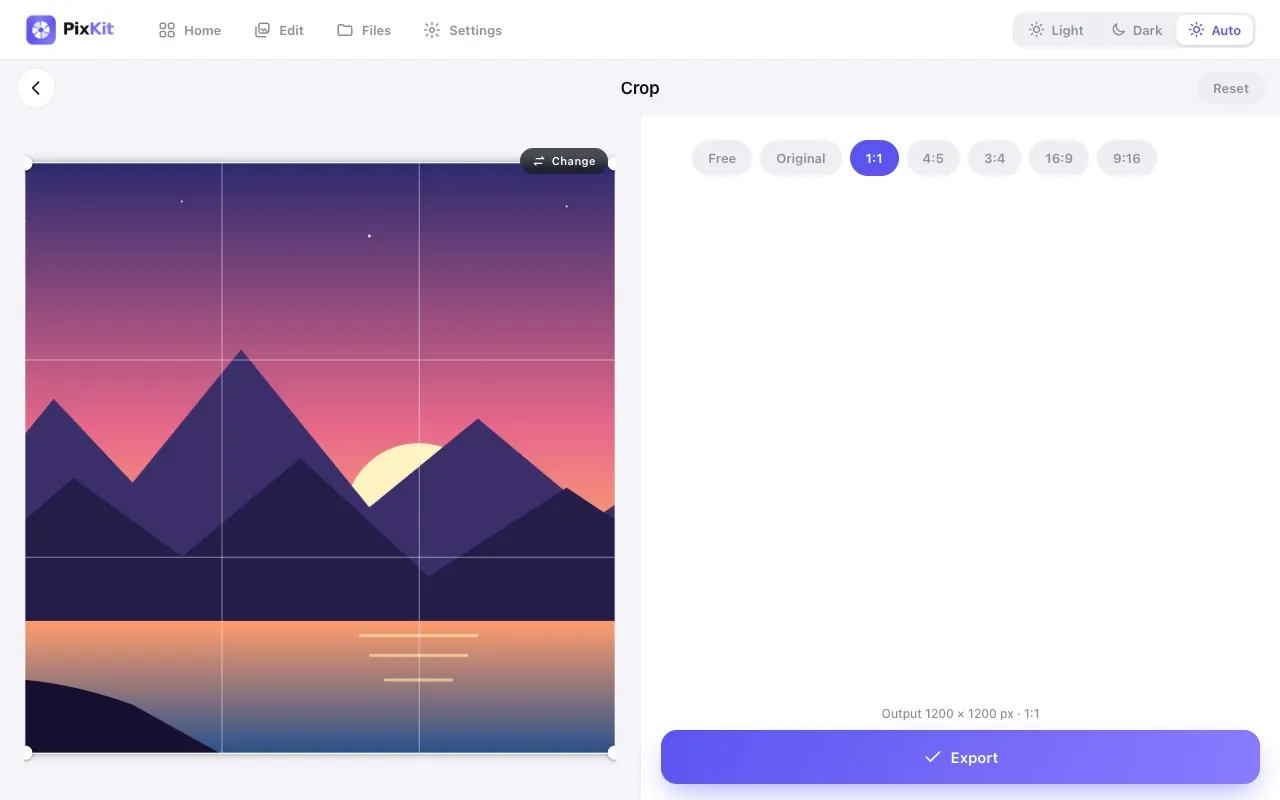
- Choose Free for any shape, or pick a ratio such as 1:1, 4:5, 3:2 or 16:9.
- Drag the corners and edges of the frame, or drag inside it to move it.
- Export and download the cropped image.
Tips for best results
- 1:1 suits profile photos; 4:5 is ideal for portrait posts; 16:9 matches video thumbnails and slides.
- Leave a little breathing room around faces instead of cropping tightly.
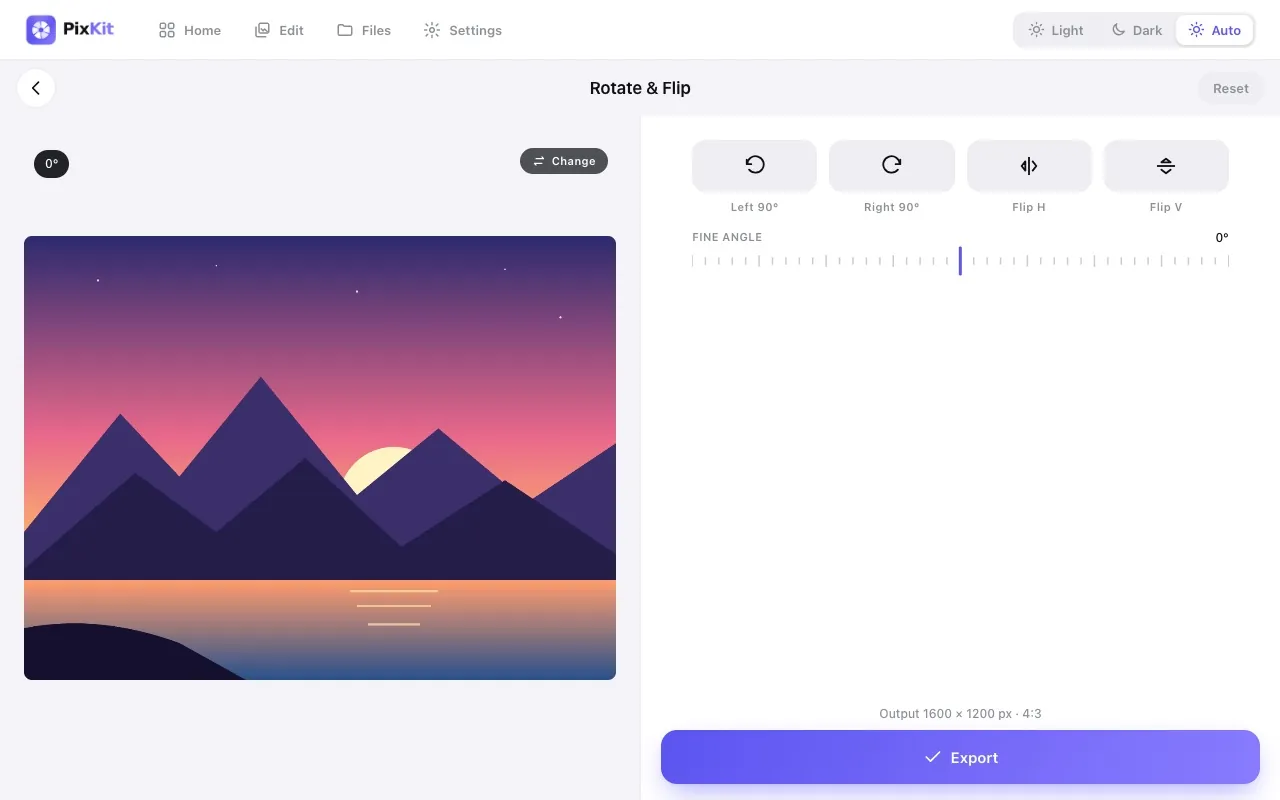
- Straighten a tilted horizon first in the Rotate tool, then crop.
Your files stay private
PixKit does all of its image and PDF work locally in your browser using the browser’s Canvas API and open-source JavaScript libraries.
Read the Privacy Policy for the full details.
Frequently asked questions
Does cropping reduce image quality?
Cropping removes pixels outside the frame but does not blur what remains. Quality only changes if you export to a lossy format like JPEG.
Can I crop a page from a PDF?
Yes — the PDF to Image tool renders a page and hands it to the cropper.
Is it free?
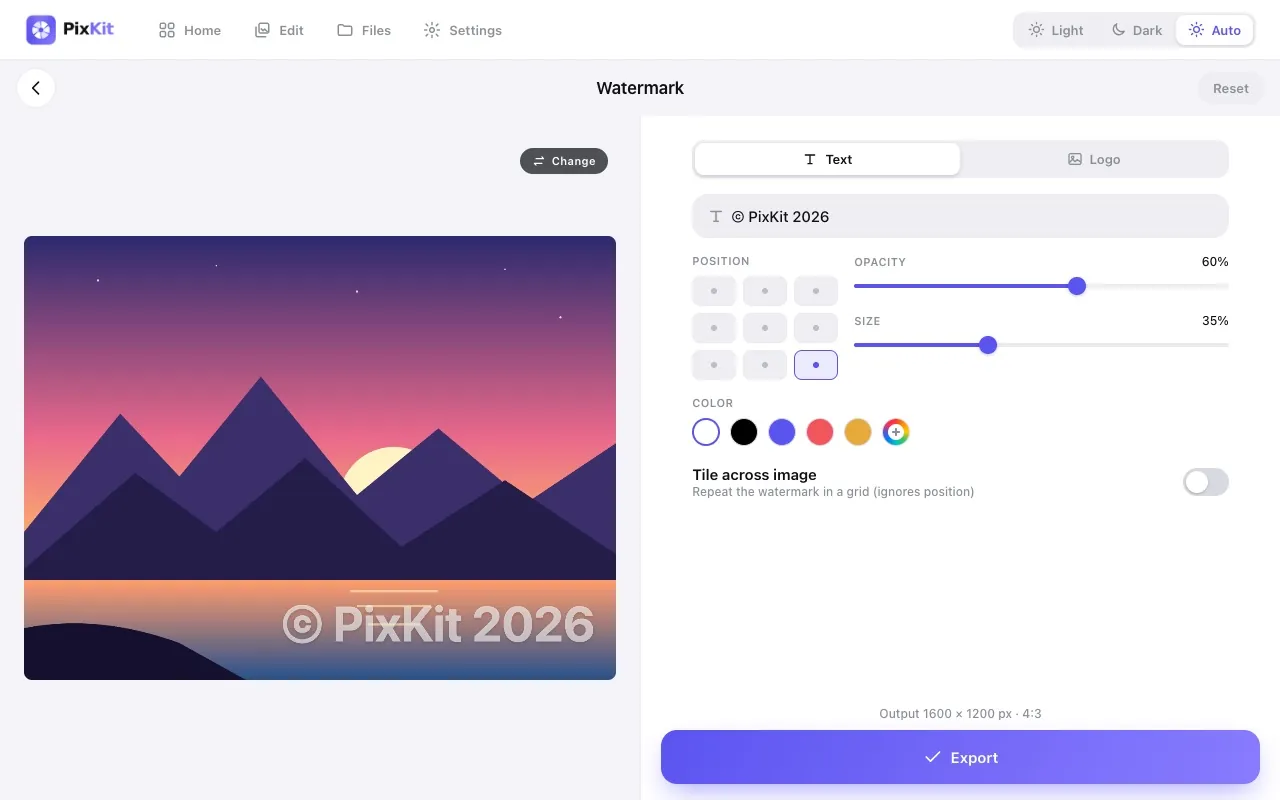
Yes. There is no sign-up and no watermark added to your images.
Popular photo shapes
Related guides
More PixKit tools