PixKit
 › Photo size guides › 4 × 2 cm signature
How to Prepare a Signature Photo (4 × 2 cm, Under 20 KB)
Photograph, crop and shrink your signature to 4 × 2 cm and under 20 KB as a clean JPG. Step-by-step tips and a one-click preset, all in your browser.
Open PixKit with these settingsAbout the Crop Image tool
The target at a glance
| Size | 4 × 2 cm |
|---|---|
| Pixels | 315 × 157 px at 200 dpi |
| Shape | 2.00 : 1 (width : height) |
| Format | JPG |
| Upload to a server | Never — runs on your device |
When you need this
Many application forms ask for a signature image about 4 × 2 cm and under 20 KB. It is a small, wide rectangle, so the way you photograph and crop it matters more than any setting.
A good signature scan is simple: dark ink on plain white paper, tightly cropped, with no shadows. Simple line art compresses extremely well, so the 20 KB limit is easy to meet once the image is clean.
- Signature uploads on application and registration forms
- Declaration and consent forms
- Digital copies for e-signing where an image is requested
- Bank and KYC forms that ask for a signature scan
Step by step
- Click Open PixKit with these settings. The tool opens with the crop shape, output size and resolution already set. Or copy this link:
https://www.pixkit.in/crop?w=4cm&h=2cm&dpi=200&max=20kb&format=jpg&bg=white - Choose your photo. It stays on your device and is never uploaded.
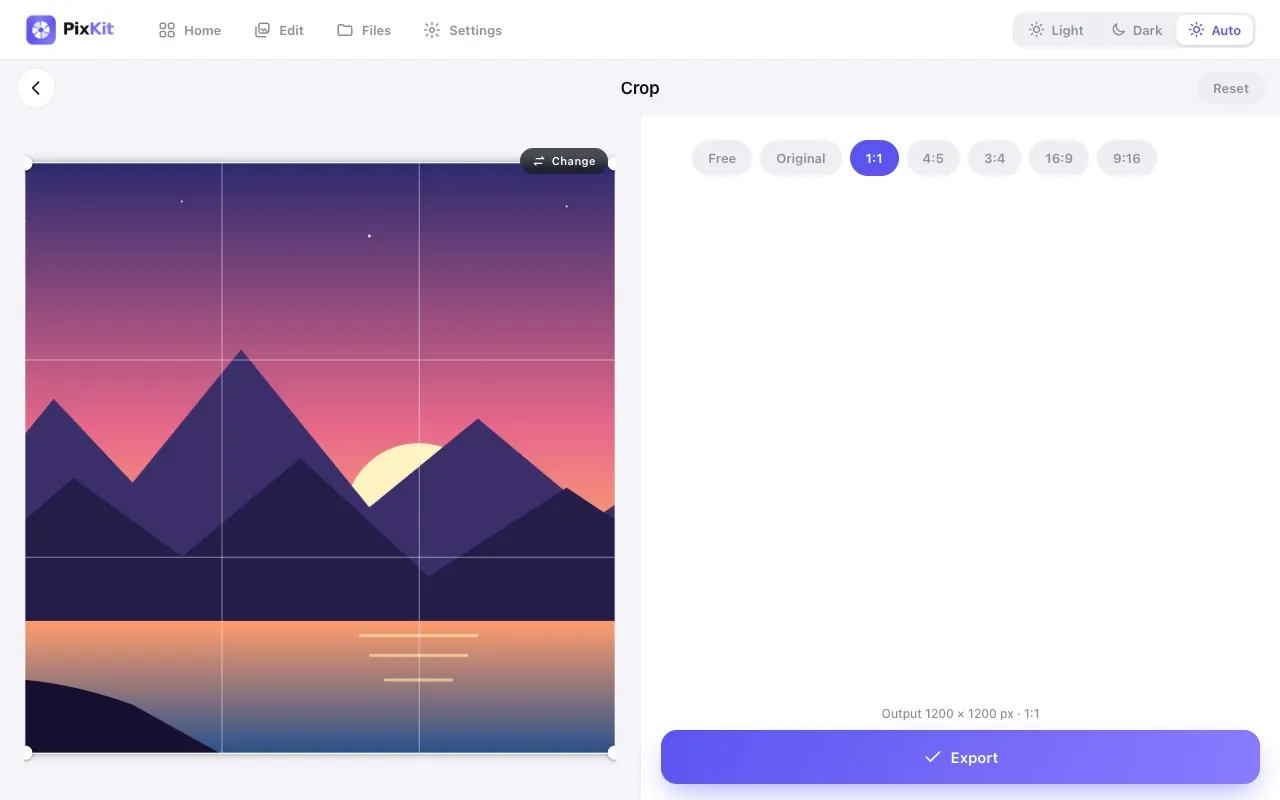
- Drag the frame to position the subject. The frame cannot change shape, so the result always matches the target.
- Press Export, then Download. The result screen shows the final size and dimensions so you can confirm it.
Other versions of this link
| Variant | Open |
|---|---|
| With a 10–20 KB range | Openhttps://www.pixkit.in/crop?w=4cm&h=2cm&dpi=200&min=10kb&max=20kb&format=jpg&bg=white |
| As pixels, 400 × 200 | Openhttps://www.pixkit.in/crop?w=400&h=200&max=20kb&format=jpg&bg=white |
You can edit the link to fit any requirement: change max and min (file size), w and h (size), dpi, format (jpg, png, webp) and bg (background colour).
Why uploads get rejected
- Shadows or a grey background from poor lighting make the file larger and the signature faint.
- The crop includes too much white space, so the signature becomes tiny.
- The image is the wrong shape, so the portal stretches it.
- The photo is still full-size and cannot reach 20 KB.
Tips for a clean result
- Sign with a black or dark blue pen on plain white paper, with margins around the signature.
- Photograph in daylight from directly above, without your shadow in the frame.
- Crop tightly to the signature so it fills the 2:1 frame.
- Do not sign on lined paper or use a thin, faint pen.
Always check the official notice. Requirements differ between portals and change over time. PixKit gives you the exact size and format you ask for, but cannot guarantee that a particular portal or authority will accept the file.
Frequently asked questions
What is 4 × 2 cm in pixels?
At 200 dpi it is 315 × 157 px; at 300 dpi, 472 × 236 px.
Why is the background white?
The preset fills any empty space with white, which looks cleaner and compresses better than a grey photo background.
Can I use a digital signature instead?
Only if the form accepts an image. Sign on paper and photograph it for the usual signature upload.
Your photo stays private
PixKit does the cropping, resizing and compressing inside your browser. Nothing is uploaded, and there is no account. See the Privacy Policy.
Related guides
More size guides