PixKit
 › Tools › Add Watermark
Add Watermark — free, private, in your browser
Stamp your name, brand or logo on photos to discourage unauthorised reuse and make sure you get credit.
Open Add WatermarkSee how it works
Why use it
Photographers, sellers and creators share images publicly all the time. A visible, tasteful watermark keeps your name attached to the picture as it travels.
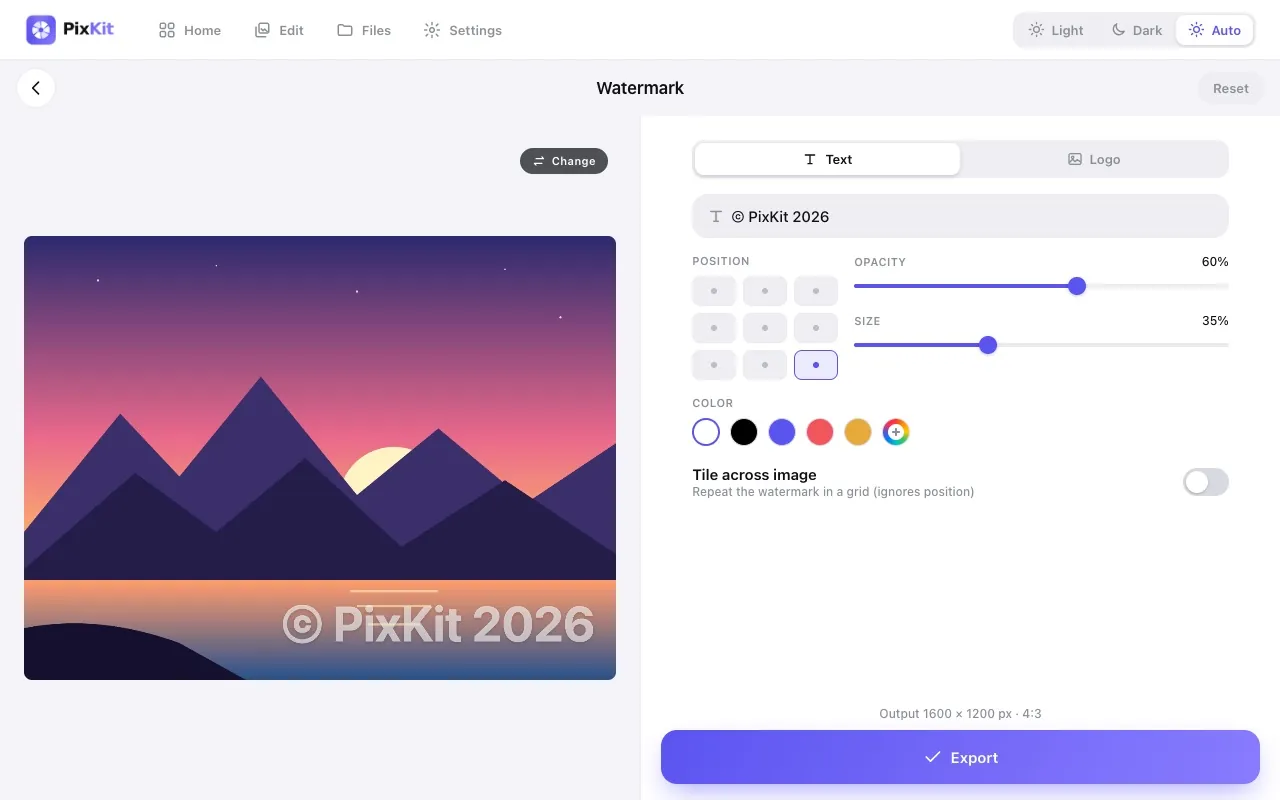
The Watermark tool lets you tune position, size and opacity so the mark protects the image without ruining it.
| Opens | JPEG, PNG, WebP, HEIC |
|---|---|
| Saves as | JPEG, PNG, WebP |
| Upload to a server | Never — everything runs on your device |
| Account needed | No |
| Cost | Free |
How to use Add Watermark
- Open the Watermark tool and choose a photo.
- Type your text (or add a logo) and pick a font colour.
- Place it using the position grid, then adjust size and opacity.
- Export and download the watermarked copy — your original is untouched.
Tips for best results
- Use around 30–50% opacity for a subtle but readable mark.
- Corners are less intrusive; the centre is harder to crop out.
- Light text on dark areas and dark text on light areas stays legible.
Your files stay private
PixKit does all of its image and PDF work locally in your browser using the browser’s Canvas API and open-source JavaScript libraries.
Read the Privacy Policy for the full details.
Frequently asked questions
Is my original file changed?
No. PixKit creates a new image; the original stays as it was.
Can someone remove the watermark?
Any visible watermark can be edited out with effort. It is a deterrent and credit line, not a lock.
Related guides
More PixKit tools