PixKit
 › Tools › Rotate & Flip Image
Rotate & Flip Image — free, private, in your browser
Fix sideways photos, mirror an image, or straighten a crooked horizon by a few degrees — without installing anything.
Open Rotate & Flip ImageSee how it works
Why use it
Photos taken on phones sometimes carry an orientation flag that other apps ignore, so they appear sideways. Scans and screenshots may be rotated the wrong way. A slightly tilted horizon makes an otherwise good photo feel off.
PixKit bakes the rotation into the pixels, so the result looks the same everywhere you upload it.
| Opens | JPEG, PNG, WebP, HEIC |
|---|---|
| Saves as | JPEG, PNG, WebP |
| Upload to a server | Never — everything runs on your device |
| Account needed | No |
| Cost | Free |
How to use Rotate & Flip Image
- Open the Rotate tool and pick a photo.
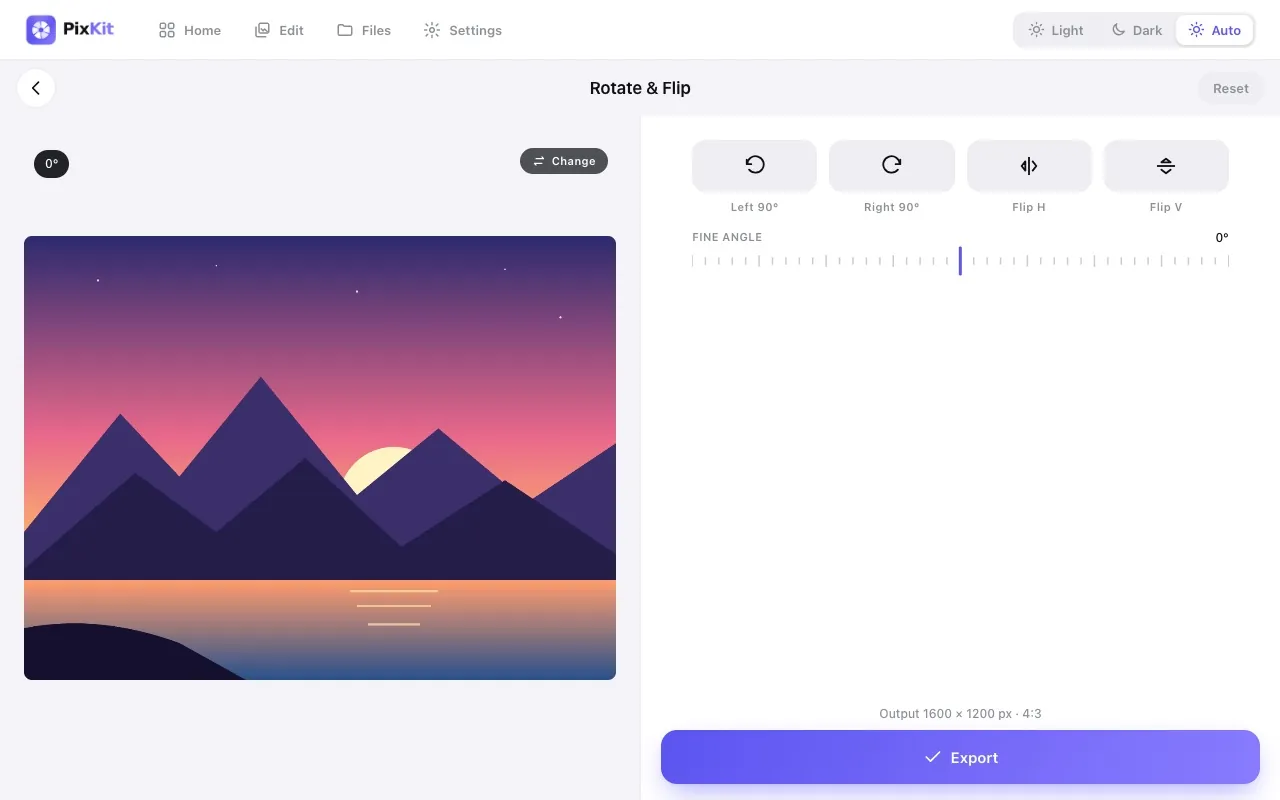
- Tap rotate left or right in 90° steps, or flip horizontally / vertically.
- Use the straighten slider to correct small tilts; the preview updates live.
- Export the corrected image.
Tips for best results
- Flip horizontally to mirror selfies that were saved reversed — but beware of mirrored text.
- Straightening crops slightly into the corners; add a fill colour if you want to keep the full frame.
Your files stay private
PixKit does all of its image and PDF work locally in your browser using the browser’s Canvas API and open-source JavaScript libraries.
Read the Privacy Policy for the full details.
Frequently asked questions
Is rotation lossless?
Quarter-turn rotations and flips do not lose detail. Exporting to JPEG applies normal JPEG compression once.
Can I rotate by any angle?
Yes, use the straighten control for fine adjustments.
Related guides
More PixKit tools