PixKit
 › Photo size guides › 35 × 45 mm
How to Make a 35 × 45 mm Passport Photo
Crop any photo to exactly 35 × 45 mm at 300 dpi for passport and visa applications. See the pixel size and open a ready-made preset in your browser.
Open PixKit with these settingsAbout the Crop Image tool
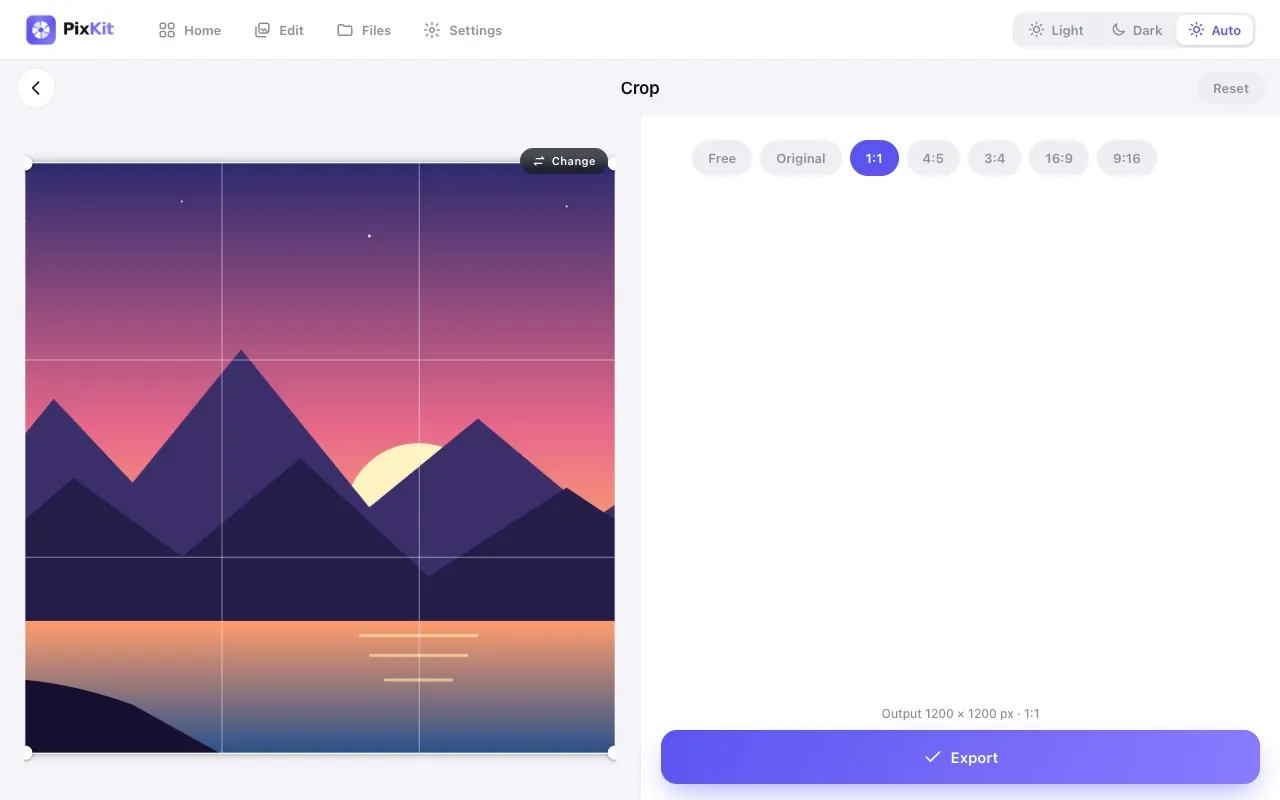
The target at a glance
| Size | 35 × 45 mm |
|---|---|
| Pixels | 413 × 531 px at 300 dpi |
| Shape | 0.78 : 1 (width : height) |
| Format | JPG |
| Upload to a server | Never — runs on your device |
When you need this
35 × 45 mm is the standard passport and visa photo size across much of Europe and many other countries. It is a 7:9 portrait rectangle, slightly taller than the 3:4 shape of a phone photo, so a straight crop is needed rather than a simple resize.
PixKit’s preset locks the crop frame to this exact shape and exports it at 300 dpi, so the file prints at the right size and uploads at the right pixel dimensions.
- Passport and national ID photo uploads
- Schengen and other visa application photos
- Driving licence and residence-permit applications
- Printing at a photo shop in the standard biometric size
Step by step
- Click Open PixKit with these settings. The tool opens with the crop shape, output size and resolution already set. Or copy this link:
https://www.pixkit.in/crop?w=35mm&h=45mm&dpi=300&format=jpg&bg=white - Choose your photo. It stays on your device and is never uploaded.
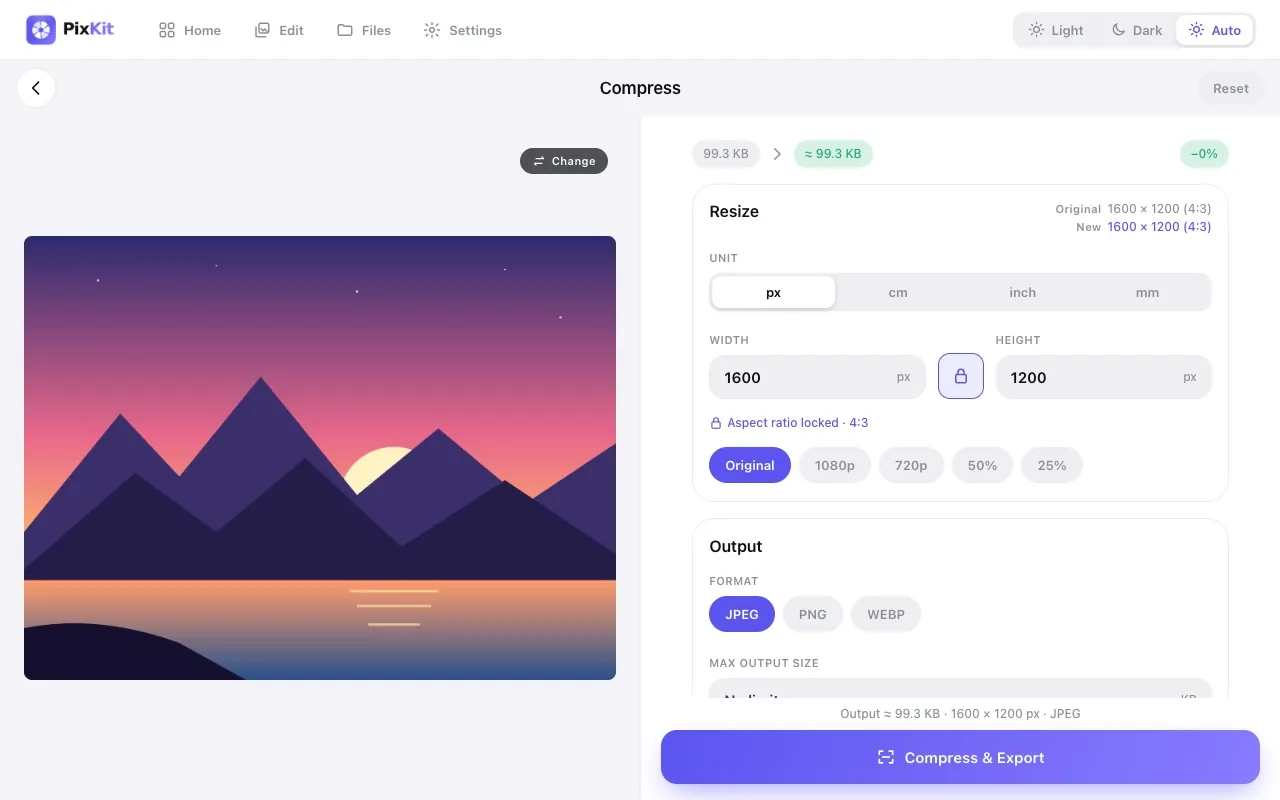
- Drag the frame to position the subject. The frame cannot change shape, so the result always matches the target.
- Press Export, then Download. The result screen shows the final size and dimensions so you can confirm it.
Other versions of this link
| Variant | Open |
|---|---|
| With a 500 KB limit | Openhttps://www.pixkit.in/crop?w=35mm&h=45mm&dpi=300&max=500kb&format=jpg&bg=white |
| Light grey background fill | Openhttps://www.pixkit.in/crop?w=35mm&h=45mm&dpi=300&format=jpg&bg=lightgray |
You can edit the link to fit any requirement: change max and min (file size), w and h (size), dpi, format (jpg, png, webp) and bg (background colour).
Why uploads get rejected
- The photo was cropped to a different ratio, such as 3:4 or 4:5, so the head is the wrong proportion.
- The resolution is too low for the requested dpi.
- Shadows on the face or background, which official checks reject.
- The file exceeds the portal’s size limit; add a limit to the link (see below).
Tips for a clean result
- Use a plain, light background and even front lighting, with a neutral expression.
- Keep the head centred and fully visible with space above it — the crop frame helps you judge this.
- Check the official guidance for head size and background colour; requirements vary by country.
- If a portal also caps the file size, use the variant link with a limit.
Always check the official notice. Requirements differ between portals and change over time. PixKit gives you the exact size and format you ask for, but cannot guarantee that a particular portal or authority will accept the file.
Frequently asked questions
What is 35 × 45 mm in pixels?
At 300 dpi it is 413 × 531 pixels. At 600 dpi it is 827 × 1063 pixels.
Is this the same as a 2 × 2 inch photo?
No. 2 × 2 inch (51 × 51 mm) is square, used mainly in the United States and some other countries.
Does PixKit guarantee my photo is accepted?
No. It gives you the exact size and format; the rules about face position, expression and background are set by each authority.
Your photo stays private
PixKit does the cropping, resizing and compressing inside your browser. Nothing is uploaded, and there is no account. See the Privacy Policy.
Related guides
More size guides