PixKit
How to Convert a JPG or PNG Image to PDF (A4, Letter, Custom Size)
Turn a photo or scan into a tidy PDF page. Choose page size, orientation, margins and background — all in your browser without uploading the file.
When a PDF is the better format
Offices, universities and government portals frequently ask for documents as PDF. A PDF page keeps its size and layout on every device, prints predictably and is accepted where a loose JPG might not be. A photographed certificate, a signed letter or a scanned receipt is far easier to submit as a PDF page.
Step-by-step: image to PDF
- Open the Image → PDF tool and choose your picture.
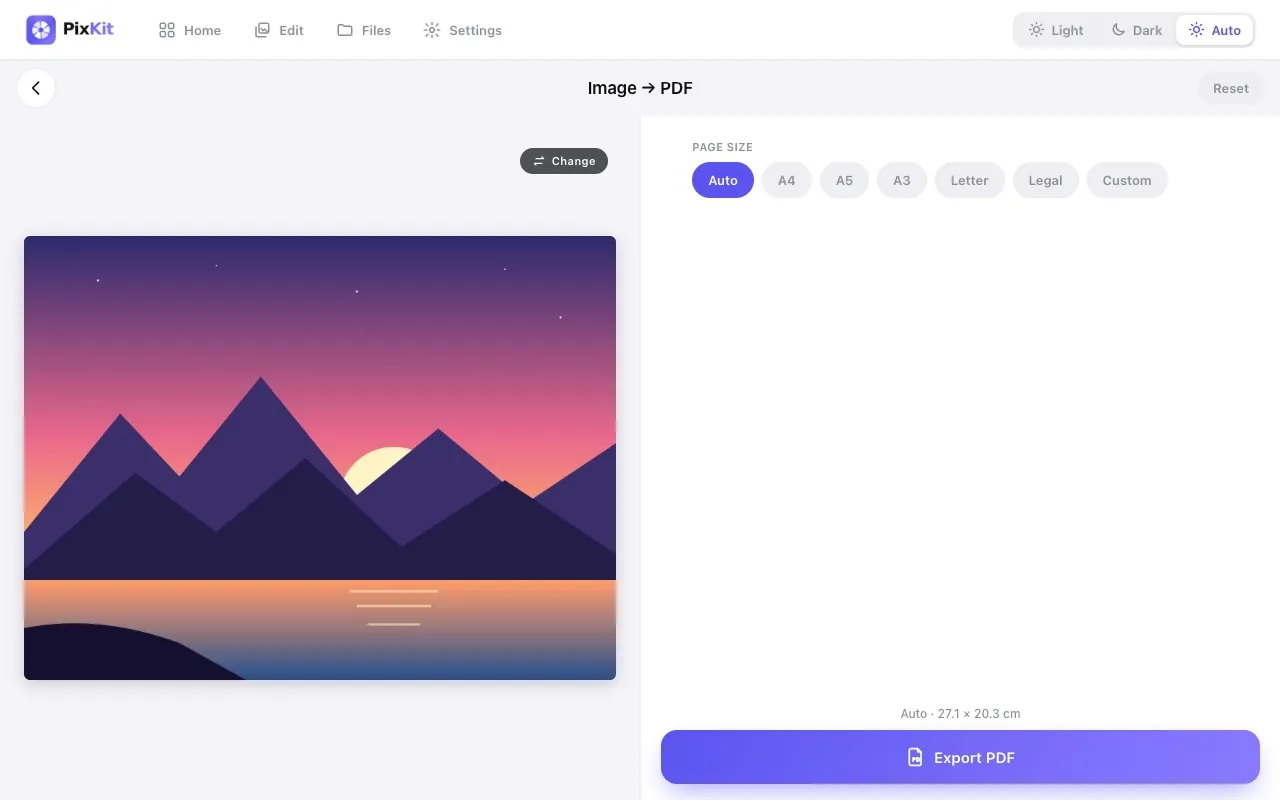
- Pick a page size: Auto fits the PDF to the image, or choose A4, A5, A3, Letter, Legal or Custom (enter width and height in centimetres).
- Choose portrait or landscape. For a tall photo of a document, portrait usually fits best.
- Set the margin, scale and position, and choose a background colour for any empty space around the image.
- Press Export PDF. The file is created in your browser and can be downloaded, copied or shared.
Choosing the right page size
- A4 (21 × 29.7 cm) is the standard almost everywhere except North America.
- Letter (21.6 × 27.9 cm) and Legal are the US and Canadian standards.
- A5 is half of A4 and suits notes and small forms.
- Auto keeps the image’s own proportions with no extra space — best for screens.
- Custom lets you match an exact size requested by a print shop or portal.
Keeping the PDF small
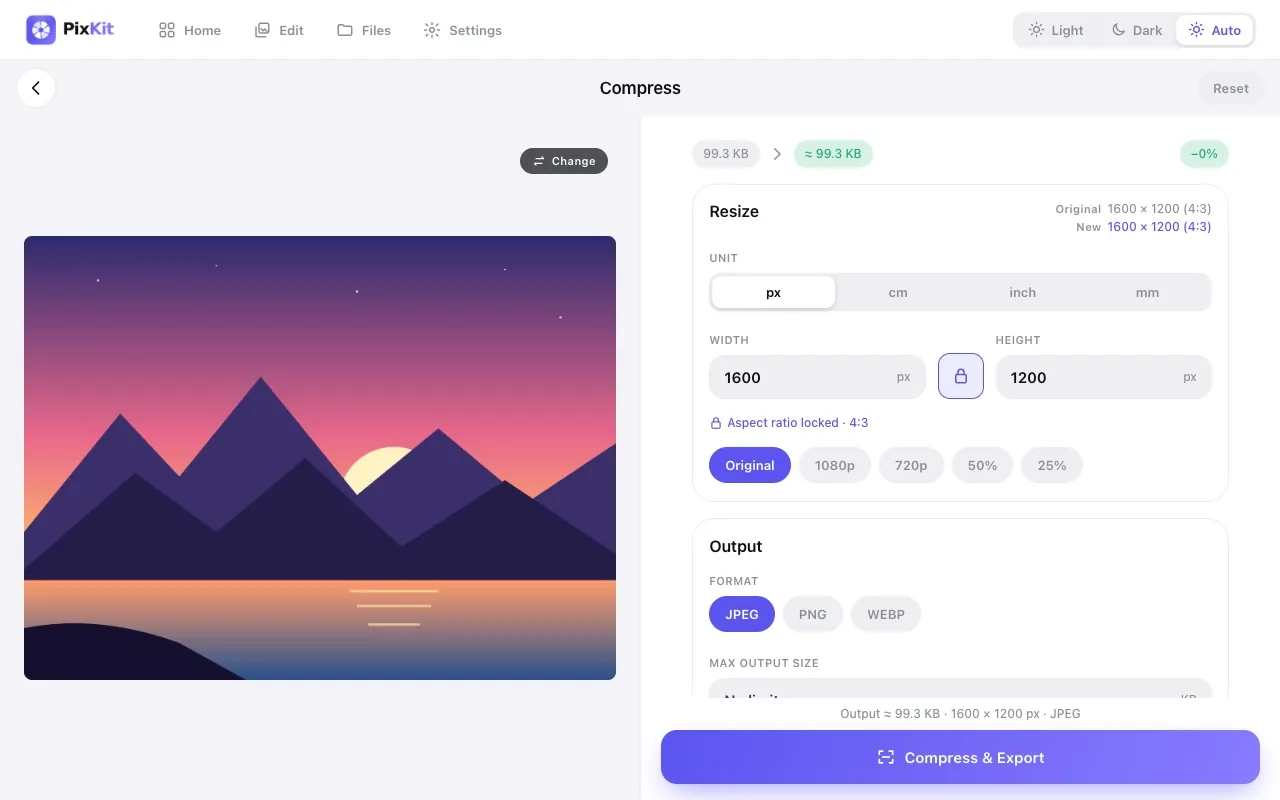
The PDF contains your image at its stored resolution, so a 12 MB photo makes a 12 MB PDF. Many upload forms cap files at 1–2 MB. Reduce the picture first: resize the long edge to around 2000 px and compress it to roughly 300–500 KB with the Compress tool, then convert. Text stays readable at that size.
Tip: for scans of text pages, 1600–2000 px on the long edge is usually enough for crisp reading on screen.
Preparing a good scan
- Photograph the page in daylight with the phone held directly above it.
- Fix a tilted scan with the Rotate tool before converting.
- Crop out the desk and edges so the page fills the frame.
- Avoid shadows from your hand or phone.
Multiple pages
PixKit builds one PDF page per image. For a multi-page document, convert each page and merge them with a PDF tool, or send them in order as separate files if the recipient allows it.
Privacy
Documents tend to contain personal details. The conversion runs entirely in your browser with an open-source PDF library; the picture and the finished PDF are never uploaded.
Try Image to PDF freeAbout this tool
More guides