 PixKit
Image to PDF — free, private, in your browser
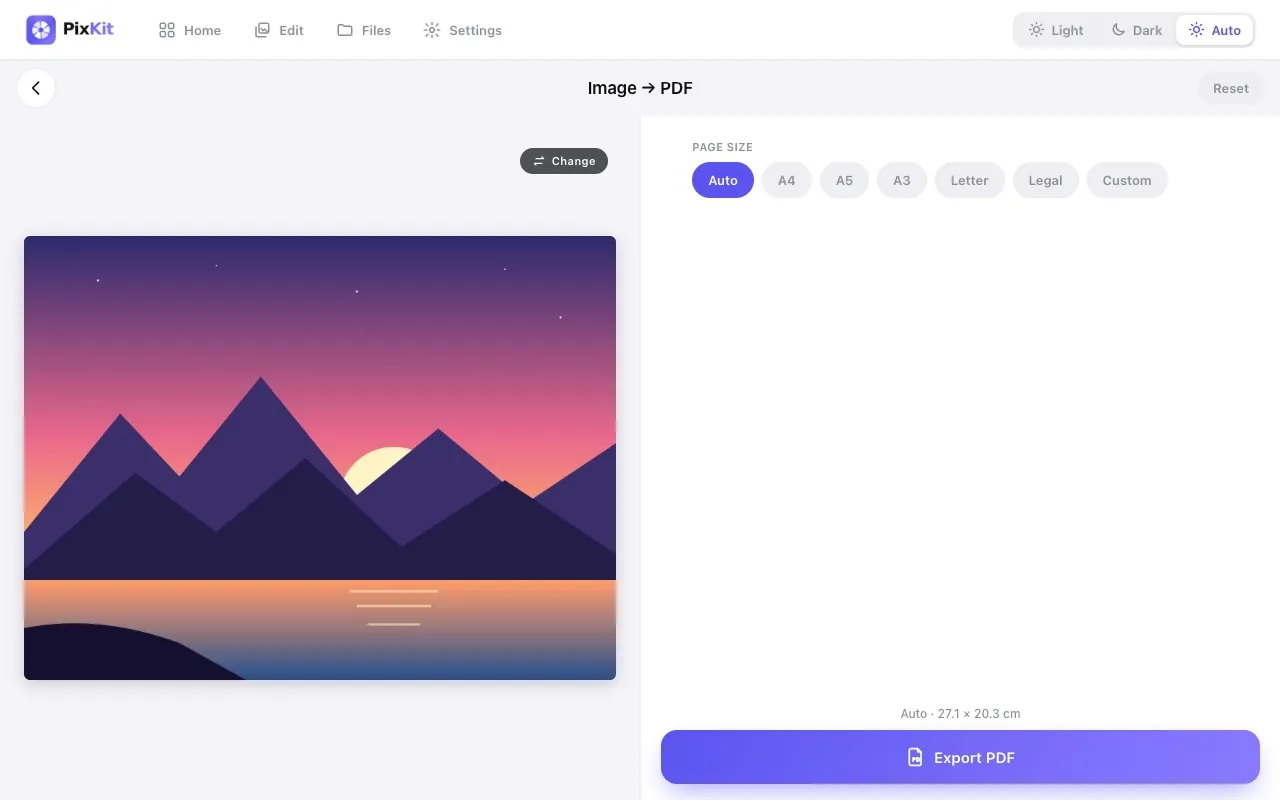
Convert a JPG, PNG or WebP picture into a PDF page sized the way you need it — A4, Letter, or a custom size in centimetres.
Open Image to PDFSee how it works
Why use it
Applications and offices often require documents as PDF. A scanned certificate or a photographed form is far easier to send as a tidy PDF page.
You control the layout: page size, portrait or landscape, margin, scale and background colour.
| Opens | JPEG, PNG, WebP, HEIC |
|---|---|
| Saves as | |
| Upload to a server | Never — everything runs on your device |
| Account needed | No |
| Cost | Free |
How to use Image to PDF
- Open Image to PDF and choose an image.
- Select page size and orientation, or enter a custom size.
- Set margins, scale and position, and a background colour.
- Export the PDF and download it.
Tips for best results
- Choose A4 for most of the world and Letter for the US and Canada.
- Compress large photos first so the PDF stays under email limits.
Your files stay private
PixKit does all of its image and PDF work locally in your browser using the browser’s Canvas API and open-source JavaScript libraries.
Read the Privacy Policy for the full details.
Frequently asked questions
Can I make a multi-page PDF?
The current tool builds a one-page PDF per image.
Is the PDF created on a server?
No. It is generated in your browser.
Related guides
More PixKit tools
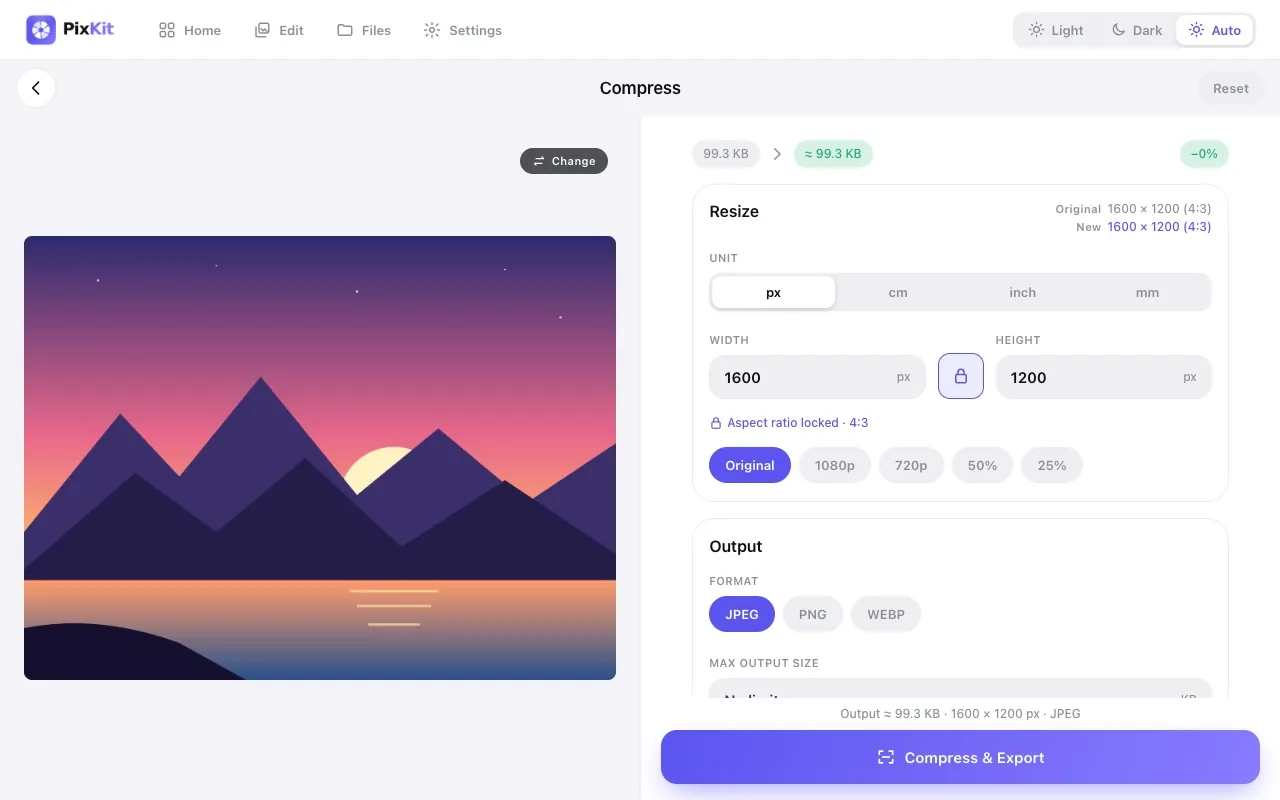
Compress ImageReduce the file size of any photo to a specific size — 100 KB, 200 KB, 1 MB — without uploading it anywhere.
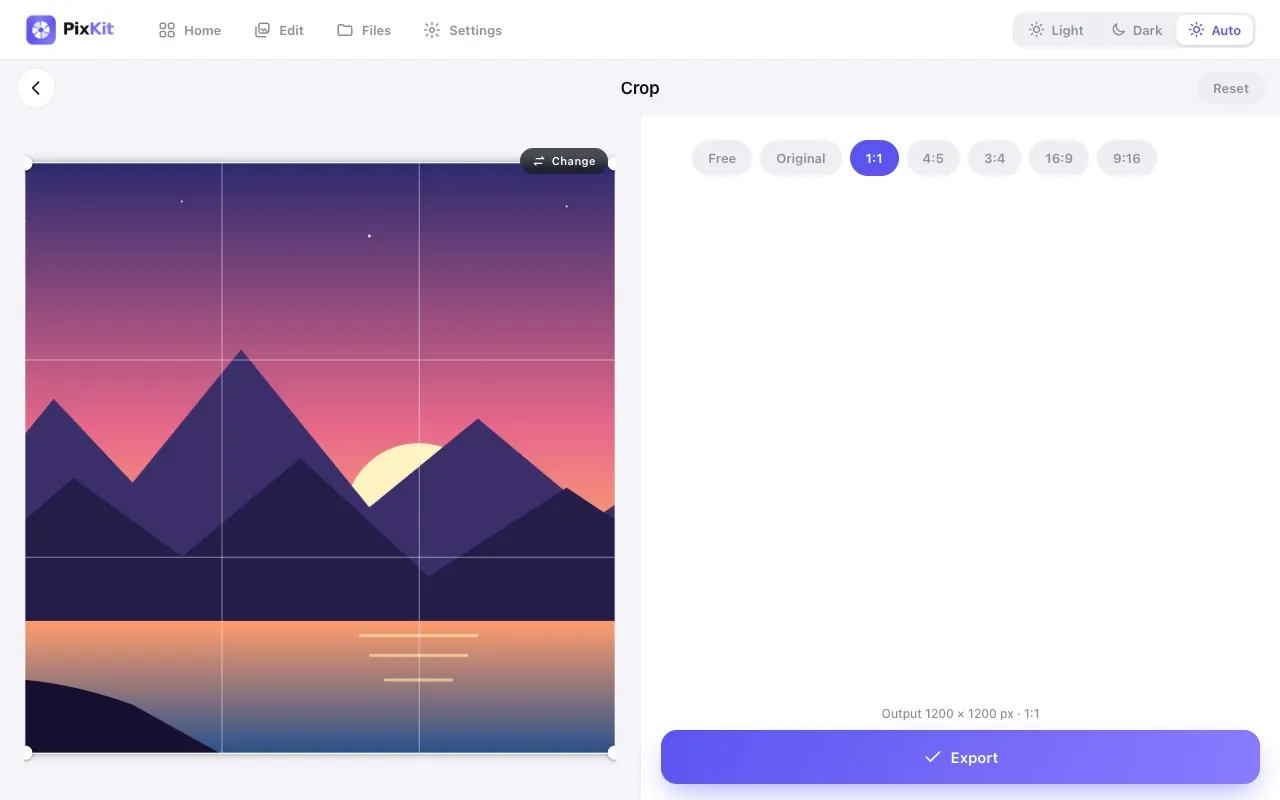
Crop ImageCut away the parts of a photo you do not need, or crop to an exact aspect ratio for profile pictures, thumbnails and social posts.
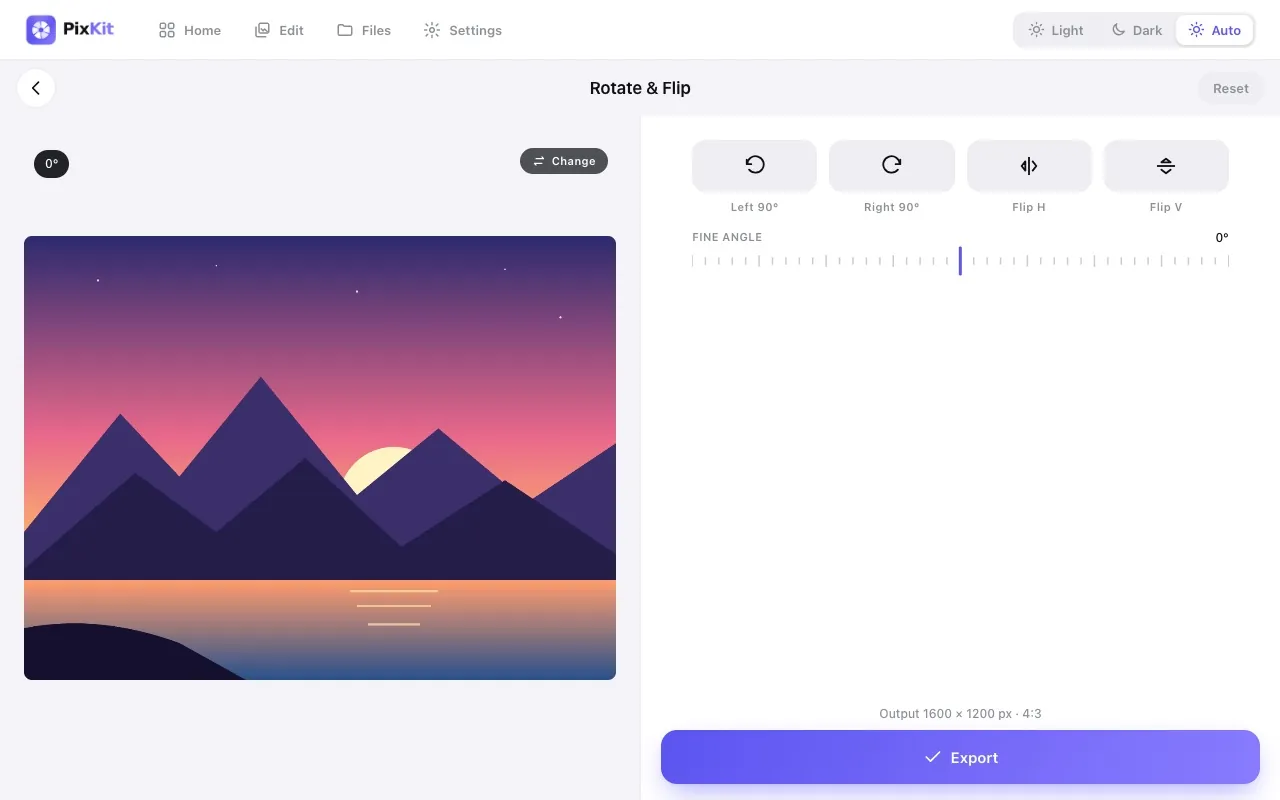
Rotate & Flip ImageFix sideways photos, mirror an image, or straighten a crooked horizon by a few degrees — without installing anything.
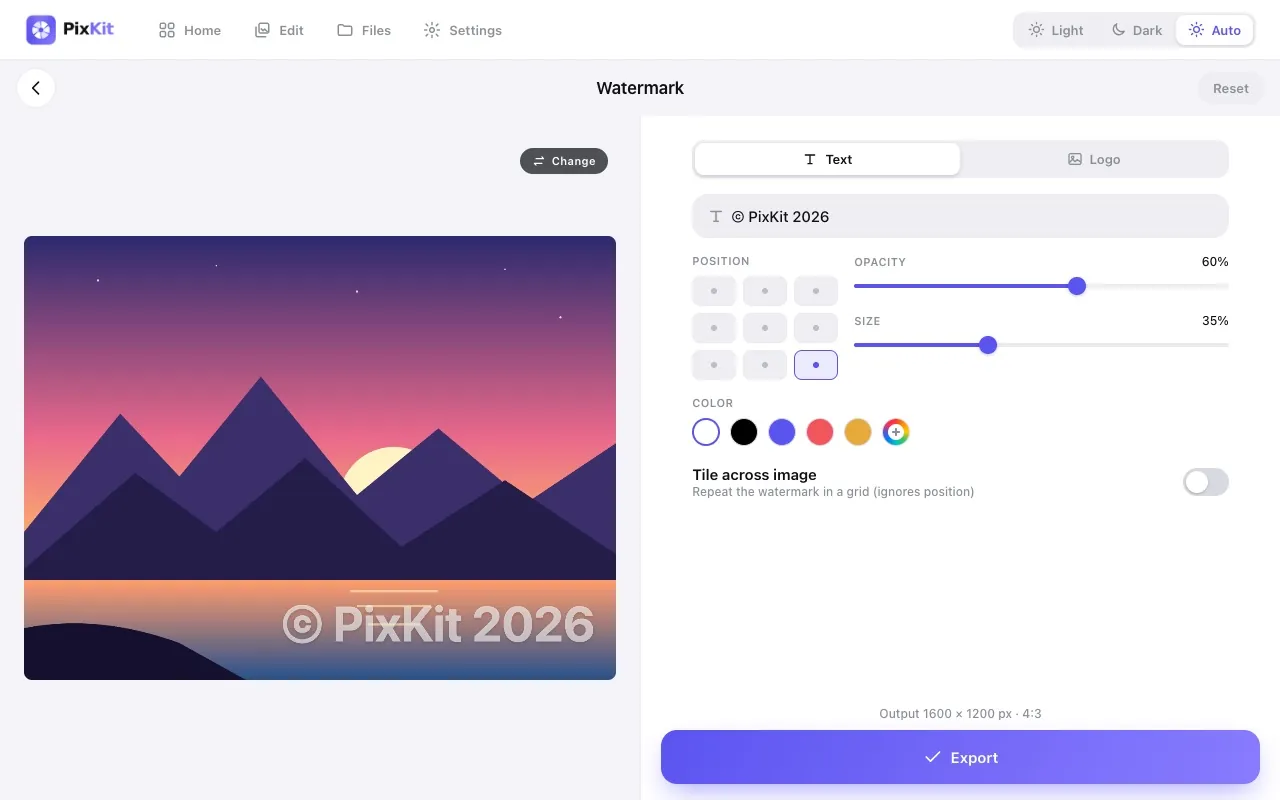
Add WatermarkStamp your name, brand or logo on photos to discourage unauthorised reuse and make sure you get credit.