PixKit
PDF to Image — free, private, in your browser
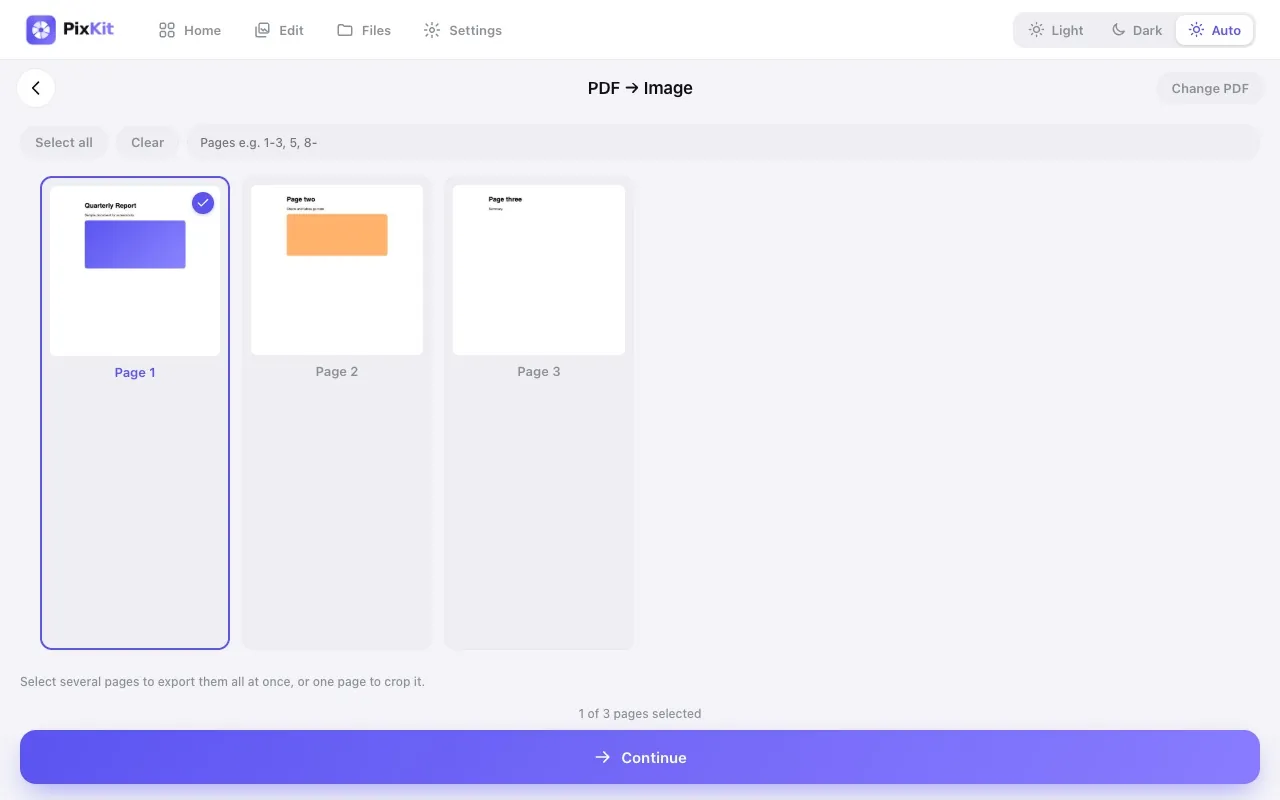
Turn PDF pages into images. Select a single page, a range like 1-3, 5, or every page, then download each image or all of them together as a ZIP.
Open PDF to ImageSee how it works
Why use it
Sharing a PDF page as a picture is handy for chats, slides, thumbnails and forms that only accept images. Extracting every page of a scanned document used to need desktop software or an upload to an unknown server.
PixKit renders PDF pages directly in your browser using PDF.js, so confidential documents like contracts, IDs and statements are never sent anywhere.
| Opens | |
|---|---|
| Saves as | PNG, JPEG, WebP (ZIP for many pages) |
| Upload to a server | Never — everything runs on your device |
| Account needed | No |
| Cost | Free |
How to use PDF to Image
- Open PDF to Image and choose a PDF (or drag it onto the page).
- Tap pages to select them, use Select all, or type a range such as 1-3, 5, 8-.
- Pick the output format (PNG, JPEG or WebP) and resolution (Standard, High or Max).
- Press Export. With one page selected you can crop it first; with several, you get every page as an image.
- Download pages individually or choose Download all (ZIP).
Tips for best results
- Use PNG for text-heavy pages and diagrams; use JPEG or WebP for photo-heavy pages to keep files small.
- High (2560 px on the long edge) is a good balance for screens; choose Max for printing or zooming.
- Password-protected PDFs cannot be read — remove the password first.
Your files stay private
PixKit does all of its image and PDF work locally in your browser using the browser’s Canvas API and open-source JavaScript libraries.
Read the Privacy Policy for the full details.
Frequently asked questions
Can I convert all pages at once?
Yes. Choose Select all and export; the result can be downloaded as a single ZIP.
Are my PDFs uploaded?
No. Pages are rendered locally in your browser and never leave your device.
Why is a page blank or missing?
Rarely, a PDF uses features the renderer cannot display. Try another resolution or re-save the PDF.
Is there a page limit?
No fixed limit, but very large PDFs at Max resolution need a lot of memory — convert in batches if your device slows down.
Related guides
More PixKit tools