PixKit
 › Photo size guides › 1080 × 1350
Instagram Post Sizes: How to Crop to 1080 × 1350 (and Others)
Crop photos to Instagram’s portrait (1080 × 1350), square (1080 × 1080) and story (1080 × 1920) sizes in your browser, with one-click presets.
Open PixKit with these settingsAbout the Crop Image tool
The target at a glance
| Size | 1080 × 1350 px |
|---|---|
| Pixels | 1080 × 1350 px |
| Shape | 0.80 : 1 (width : height) |
| Format | JPG |
| Upload to a server | Never — runs on your device |
When you need this
Instagram shows images in fixed shapes, and anything that does not match gets cropped automatically. The portrait 4:5 shape at 1080 × 1350 pixels takes up the most screen space in the feed, which is why many creators use it.
Cropping yourself keeps control over what stays in frame. The presets below lock the crop to the right ratio and export at the right pixel size.
- Feed posts in portrait 4:5
- Square posts and profile images
- Stories and reels cover images at 9:16
- Product and event photos for social media
Step by step
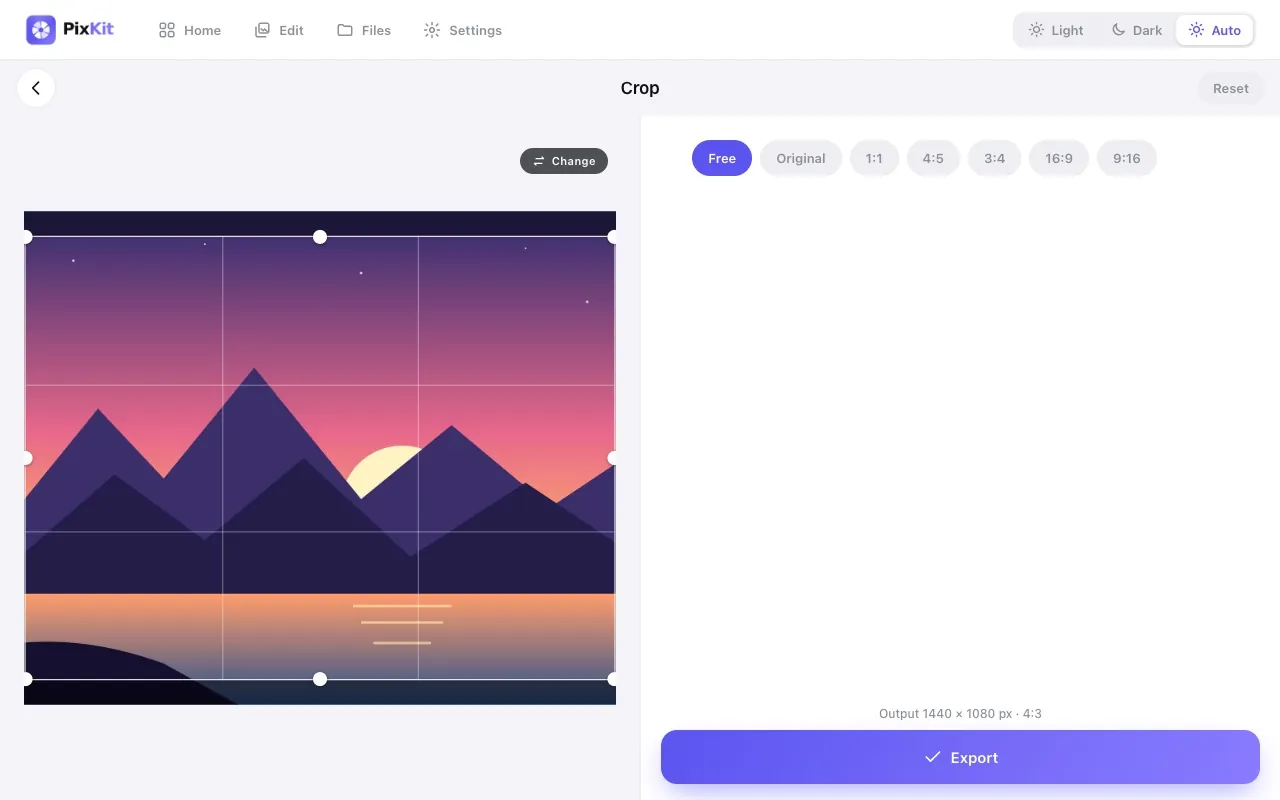
- Click Open PixKit with these settings. The tool opens with the crop shape, output size and resolution already set. Or copy this link:
https://www.pixkit.in/crop?w=1080&h=1350&format=jpg - Choose your photo. It stays on your device and is never uploaded.
- Drag the frame to position the subject. The frame cannot change shape, so the result always matches the target.
- Press Export, then Download. The result screen shows the final size and dimensions so you can confirm it.
Other versions of this link
| Variant | Open |
|---|---|
| Square 1080 × 1080 | Openhttps://www.pixkit.in/crop?w=1080&h=1080&format=jpg |
| Story 1080 × 1920 | Openhttps://www.pixkit.in/crop?w=1080&h=1920&format=jpg |
| Landscape 1080 × 566 | Openhttps://www.pixkit.in/crop?w=1080&h=566&format=jpg |
You can edit the link to fit any requirement: change max and min (file size), w and h (size), dpi, format (jpg, png, webp) and bg (background colour).
Why uploads get rejected
- The photo is a different ratio, so the platform crops the sides or top and bottom.
- The image is smaller than 1080 px wide, so it is upscaled and looks soft.
- Heavy compression from repeated saves.
- The subject is too close to an edge and gets cut off.
Tips for a clean result
- Leave a safe margin around faces and text; feeds and the profile grid crop differently.
- Start from the original, not a screenshot or a forwarded copy.
- Export as JPG at high quality; Instagram recompresses uploads anyway.
- Check how the post looks in the profile grid, which shows a different crop.
Always check the official notice. Requirements differ between portals and change over time. PixKit gives you the exact size and format you ask for, but cannot guarantee that a particular portal or authority will accept the file.
Frequently asked questions
What size is an Instagram post?
Common sizes are 1080 × 1350 px (portrait 4:5), 1080 × 1080 px (square) and 1080 × 1920 px (stories, 9:16). Platforms change their rules, so check the current guidance.
Does PixKit upscale small images?
The crop frame works on your original pixels. If the original is smaller than the target, choose a bigger source photo for the best result.
Is it free?
Yes, with no watermark.
Your photo stays private
PixKit does the cropping, resizing and compressing inside your browser. Nothing is uploaded, and there is no account. See the Privacy Policy.
Related guides
More size guides